How:
AI video translation
Localize your winning video ads
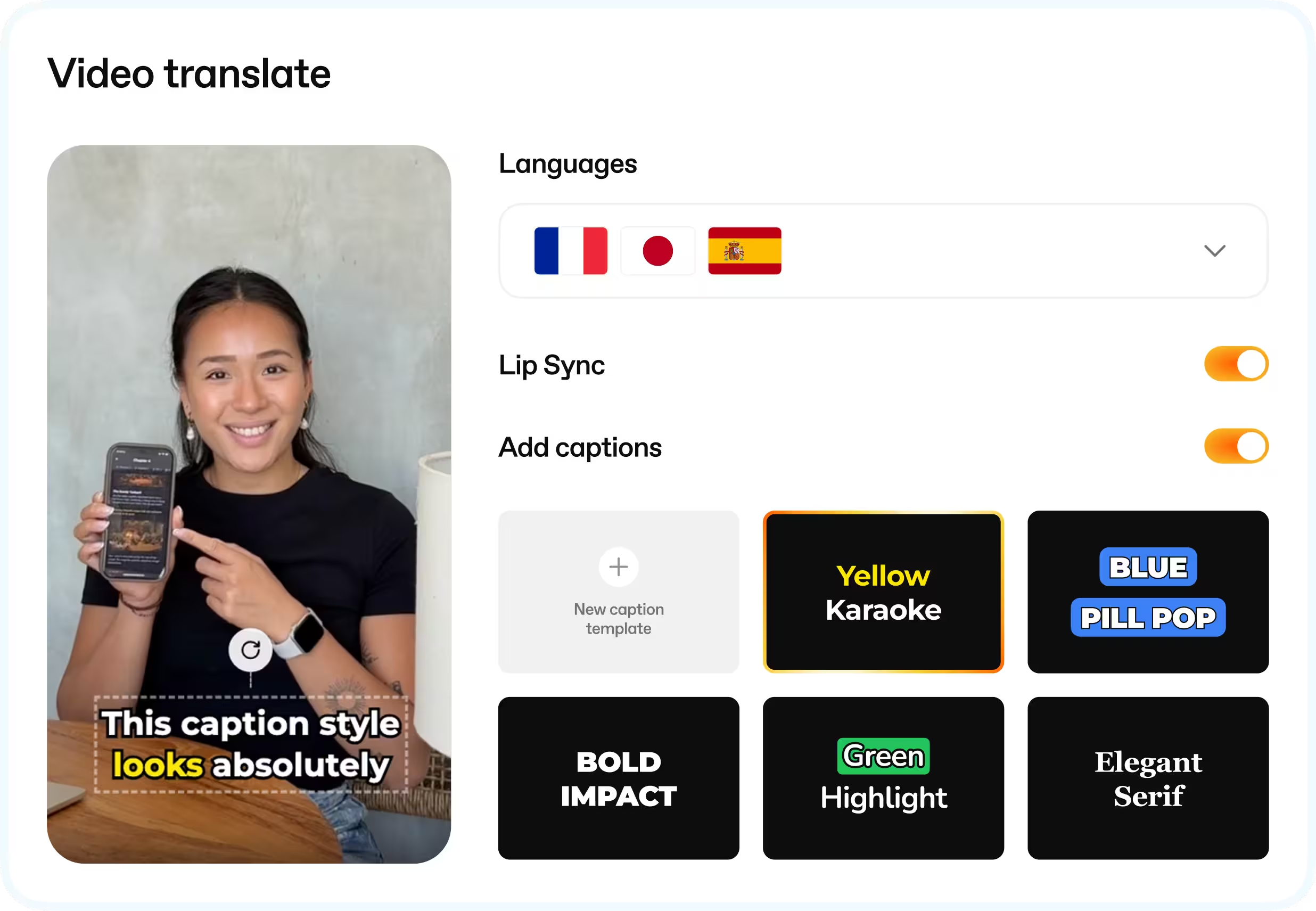
Take a video that already works and localize what people hear and see. Translate the voice, captions, and text on screen, with optional lip sync for speakers on camera.
Loved by growing apps and leading app studios

Breeze

Vocal Image

Instories

Bend

memoryOS

Glam AI

Windy

AppNation

Parrot

MyEdSpace

Lingvano

Talaboos
Breeze
Vocal Image
Instories
Bend
memoryOS
Glam AI
Windy
AppNation
Parrot
MyEdSpace
Lingvano
Talaboos

EWA

rocapine

Peech

Woofz

Dil Mil

Tiny Minies

Loora

BitePal

SevenApps

Lingokids

Freeletics
Kotcha
EWA
rocapine
Peech
Woofz
Dil Mil
Tiny Minies
Loora
BitePal
SevenApps
Lingokids
Freeletics
Kotcha
What gets localized
Narration
Generate a translated voice track for each target language from the original video.
Lip sync
Align a visible speaker’s mouth movements with the translated audio when the shot calls for it.
Captions
Add translated captions so viewers can follow the narration without sound.
On-screen text
Translate the headlines, offers, or other text placed in the video itself.
Translate the whole ad
Keep the original performance
Start with your narrated video. Create new language versions from the same footage instead of filming the ad again.
Make the speaker match the voice
Turn on lip sync for a face-to-camera delivery. Leave it off when the narration plays over a product demo or other footage.
Read the ad with the sound off
Translate captions and the words shown in the footage. Check that the offer makes sense even when a viewer never hears the voice.
Choose what each version needs
Do we need to reshoot this ad?
Keep the existing footage when the idea and offer fit the new market. Localize the video from that source.
Does this shot need lip sync?
Enable it when viewers can see the person speaking. Voiceover-only footage generally needs just the translated track.
Will the message land without audio?
Watch the result muted. Read the captions, offer, and final call to action as a viewer would.
Which details need a final check?
Have a fluent reviewer check product names, phrasing, caption timing, and the offer before launch.
Good to know before you start
- Start with a video that has narration.
- You can attach multiple videos and select target languages in the same workflow.
- Lip sync and translated captions are optional.
“Spiral has become a core part of our creative workflow. As a lean team, we use it to monitor competitors, identify emerging trends, remix winning concepts, and localize ads across markets.”
Yulia Karasik
VP Marketing, Loora

Customer stories
Loora
Spiral has become a core part of our creative workflow. As a lean team, we use it to monitor competitors, identify emerging trends, remix winning concepts, and localize ads across markets.

Yulia Karasik

VP Marketing
Reface
I tried lots of competitor trackers. Spiral is the first tool where research feels really good. The team kept asking for seats until we ran out. When the API shipped, I plugged it straight into my Claude agents.

Hlib Petrov
Head of Creative Marketing
Tiny Minies
We’ve been with Spiral since the early days, and watching the platform evolve has been incredible. It completely changed how we handle competitor intelligence and creative production now.

Volkan Taban
Co-founder & CMO

Kidology
Spiral increased our static creative output by 180%. Our creative producers were onboarded in just one day and quickly began delivering high-quality visuals, several of which we successfully scaled.

Alex Bondarenko
Founder
Parrot
Spiral's MCP supercharges the creative ideation process for ads. I recommend it for teams that are getting serious about their performance marketing. Go download Parrot on the app store!

Amir Hanna
Co-founder & CEO


Choose your plan
Select the plan that best fits your needs.
Upgrade or downgrade at any time.
Upgrade or downgrade at any time.
Monthly
Yearly
2 months free
Explore
$175
$175
/ month
2 team members
500 MCP credits
Includes:
Explore winning and trending ads


Track unlimited apps and websites
Create and share ad collections
Creative Meta Ads analytics
Get MCP and API access
2 app profiles connected
1 ad account connected
Unlimited ad spend
Launch
$350
$350
/ month
4 team members
1,500 AI & MCP credits
All features in Explore, plus:
Generate AI video and static ads
Analyze creatives with AI tags
Translate videos to 30+ languages
Swap AI avatars in videos
Bulk upload to Meta Ads
Unlimited ad uploads
5 app profiles connected
5 ad accounts connected
Unlimited ad spend

Grow
$750
$750
/ month
10 team members
5,000 AI & MCP credits
All features in Launch, plus:
Team onboarding
Slack / Telegram chat
Priority feature requests
Order UGCs from real creators
10 app profiles connected
15 ad accounts connected
Unlimited ad spend
Scale
Built for high-volume creative teams that need unlimited access and priority support.
Custom AI credits
Creative strategy calls
Unlimited team members
Unlimited ad accounts connected
Custom pricing and volume discounts
AI video translation FAQ
How many languages can I translate a video into?
Spiral supports dozens of target languages. Select the languages you need for each batch.
Can you translate words already on screen?
Yes. On-screen text can be translated separately from the captions generated for the voice track.
Do I have to enable lip sync?
No. Use it for visible speakers or leave it off for voiceovers.
Can I translate several ads at once?
Yes. Attach multiple narrated videos in Translate and choose your target languages.
App growth call
Book a call with CEO to discuss your app growth and creative production needs.

Thank you! Your submission has been received!
Oops! Something went wrong while submitting the form.
